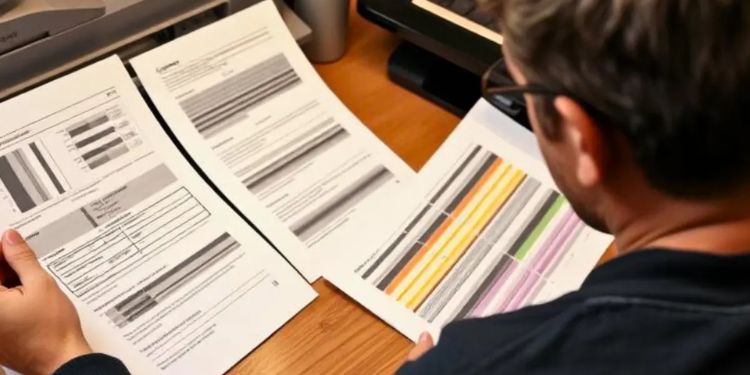
Print Quality Problems
Print quality problems can arise from hardware, software, or environmental factors. Recognizing the cause helps you quickly restore crisp, accurate printing.
- Clogged Print Heads: Dried ink or debris blocks nozzles, causing streaks, missing lines, or faded colors.
- Low Ink or Toner: Insufficient supplies produce faint prints and washed-out text or images.
- Dirty Rollers or Drums: Dust or residue creates smudges, ghosting, or uneven tones.
- Poor Paper Quality: Rough or incompatible paper absorbs ink unevenly, leading to bleeding or curling.
- Misaligned Cartridges: Improper positioning results in crooked lines, banding, or overlapping colors.
- Outdated Drivers or Settings: Incorrect software settings affect resolution, color, and print modes.
- Environmental Factors: Humidity or temperature extremes impact ink flow and paper behavior.
Step-by-Step Fixes for Print Quality Problems
- Run a Test Print: Use a diagnostic page to check for streaks, color issues, or banding.
- Clean Print Heads: Use built-in cleaning utilities or gently wipe nozzles with a lint-free damp cloth. Allow to dry before reinserting.
- Align Cartridges: Use printer software to align cartridges for straight lines and accurate color.
- Replace Supplies: Swap low or defective cartridges with high-quality OEM ones. Check drums and fusers on laser printers.
- Adjust Settings: Ensure correct paper type, quality, and resolution in print settings.
- Clean the Printer: Dust rollers, sensors, and interior parts. Clean external surfaces with a microfiber cloth.
- Update Software: Install the latest drivers and firmware from the manufacturer’s website, then restart the printer and computer.
Advanced Troubleshooting
- Reset printer to factory defaults to clear corrupted settings.
- Check for firmware updates via the manufacturer’s website or app.
- Test different paper or ink brands to isolate compatibility issues.
- Use calibration tools for color-critical prints, such as photographs.
Prevention Strategies
- Use recommended paper and ink/toner to ensure compatibility.
- Perform regular cleaning and cartridge alignments, ideally monthly.
- Keep the printer in a clean area with stable temperature (60–80°F) and humidity (40–60%).
- Update drivers and firmware regularly.
- Print frequently or run maintenance cycles to prevent ink drying.
- Store unused cartridges in a cool, dry place with caps on.
Following these steps helps maintain professional print quality. Persistent issues may indicate hardware faults, like damaged print heads or drums, which require professional repair. Regular maintenance and careful handling keep your printer producing sharp and vibrant output consistently.